SNMP Polling Tool

SNMP Polling for Device Reachability

SNMP polling is commonly used by network management systems to verify whether a device is reachable and responding correctly. During polling, the NMS sends an SNMP GET request to a known OID—often a simple, lightweight value such as sysUpTime or sysName. If the device returns a valid SNMP response, it confirms that:

  1. The device is reachable on the network

  2. The SNMP service is running

  3. The device is responding within acceptable time limits

If the NMS does not receive a response after multiple retries, the device is marked as unreachable. This is often one of the earliest indicators of a problem, such as a network failure, device crash, or loss of SNMP service.

Regular polling ensures consistent monitoring by providing:

  • Up/Down detection

  • Response-time tracking

  • Verification that SNMP functionality is operational

Because reachability checks rely on active requests rather than device-generated notifications, SNMP polling remains an essential mechanism for confirming that devices are alive and communicating, even when traps or informs are not received.

The application below outlines a basic implementation of network polling that can be used within a lab environment.

Features:

  • Platform

    • Windows Desktop or Server.

  • Tabs

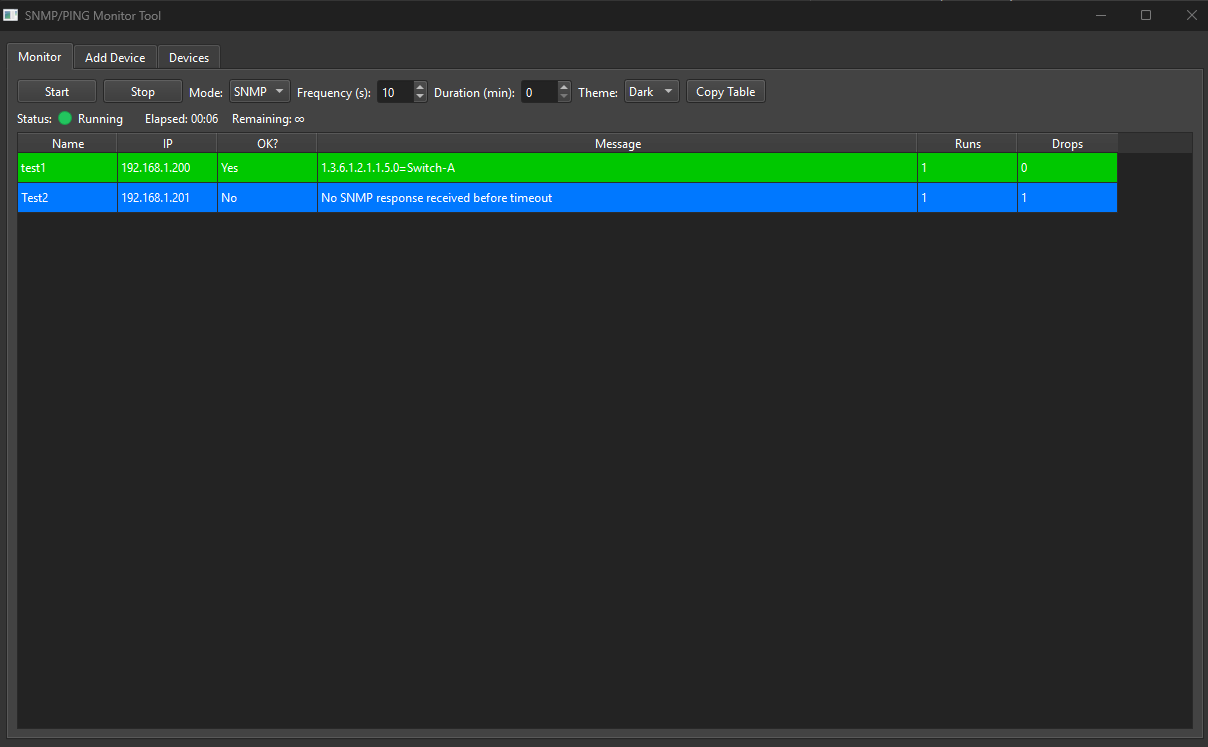
    • Monitor: Run SNMP requests to remote devices, view live results to monitor or troubleshoot connectivity issues between the server and device.

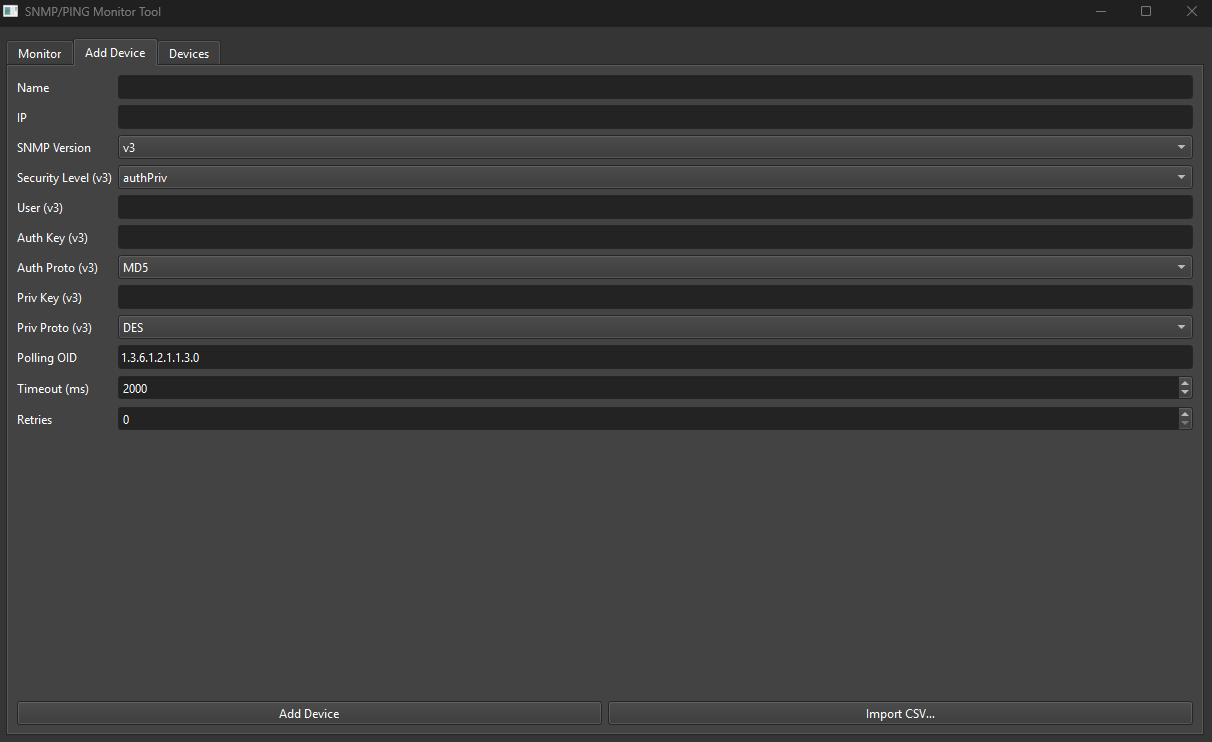
    • Add Device: Enter SNMP parameters and save to CSV file for easy usage.

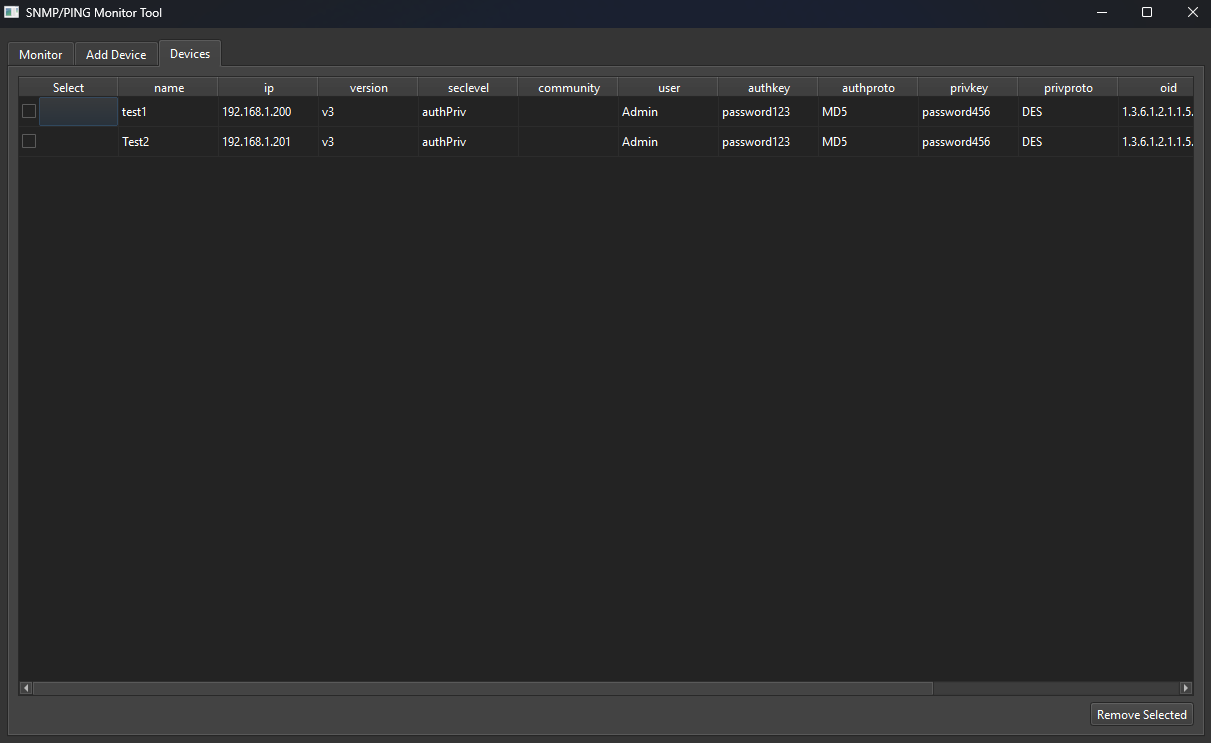
    • Devices: View/remove saved devices.

  • Storage

    • Devices stored within devices.csv. When the Application starts it reads previously saved data from CSV to automatically previously used fields.

  • Protocols

    • SNMPv1/v2c is strong not recommended as it offers no encryption over the network however as many legacy device do not support SNMPv3 then SNMPv1/v2c is the only option.

    • SNMP v3 (noAuthNoPriv / authNoPriv / authPriv + selectable auth/priv algorithms). It is strongly recommended to use “authPriv” as this fully encrypts the SNMP packet.

  • Polling modes

    • SNMP GET request on the device’s configured OID, or PING.

  • Concurrency

    • One worker thread per device each cycle for parallel checks. As the tool is intended as a light weight with minimal device count then one worker for each device speeds up the applications responsiveness.

  • Run control

    • Start/Stop with LED (green = running, grey = stopped).

    • Frequency in seconds can be configured between each request.

    • Optional Duration in minutes with auto-stop at end. Ideal for running timed tests to capture response to help determine if any network issues due to dropped and captured packets.

    • Elapsed / Remaining timers (minutes and seconds).

  • Results table

    • Columns: Name, IP, OK?, Message, Runs, Drops.

    • Row colour: green (success) / blue (failure).

    • Copy Table button (paste as CSV format into Excel/Sheets or docs).

  • Theme

    • Light/Dark switch (Light by default).

Functions & methods.

  • Add Device tab

    • Fields: Name, IP, Version (v1/v2c/v3), Community (v1/v2c), Security Level (v3), User (v3), Auth Key/Proto, Priv Key/Proto, Polling OID, Timeout (ms), Retries.

    • Dynamic visibility: v1/v2c → Community only; v3 → show security level + toggle auth/priv fields by level.

    • Buttons: Add Device (save), Import CSV (replace).

  • Devices tab

    • Table with checkbox column + all device fields.

    • Remove Selected (blocked if monitoring is running).

  • Monitor tab

    • Controls: Start/Stop, Mode (SNMP/PING), Frequency (s), Duration (min; 0 = indefinite), Theme, Copy Table.

    • Status: text + LED indicator.

    • Timers: Elapsed / Remaining.

    • Results: populate & colour rows; copy to clipboard.

Polling flow

  • Press Start → timers reset; LED green; Poller thread starts.

  • Each cycle:

    • Load devices from CSV.

    • Create a thread pool with one worker per device; run checks in parallel.

    • Update Runs/Drops; refresh table and row colours.

    • Sleep briefly; remain responsive to Stop and Duration.

  • Duration > 0 → auto-stop at target time; LED grey with “Stopped (duration reached)”.

  • Press Stop anytime to halt immediately.

SNMP Poller System Diagram

Flowchart of device monitoring system illustrating tabs for monitor, add device, and remove device; CSV file handling; polling for device status; and managing SNMP and PING modes.

SNMP Poller Monitor Tab

Screenshot of a network monitoring tool showing two devices, named test1 and Test2, with their IPs, status, messages, and run strengths. Test1 has a successful ping response, while Test2 has no response.

SNMP Poller Add Device Tab

Screenshot of SNMP/PING Monitor Tool displaying device configuration with fields such as SNMP Version v3, Security Level authPriv, Auth Protocol MD5, Privacy Protocol DES, Polling OID 1.3.6.1.2.1.1.3.0, Timeout 2000 ms, and Retries 0.

SNMP Poller Add Device Tab

Screenshot of SNMP/PING Monitor Tool displaying device details like IP address, name, version, community, user, authkey, authproto, privkey, privproto, and oid for two devices named test1 and Test2.